
I do the same thing before every single trip.
I create a Google Map.
That’s it. The end. That’s the one thing I always do when planning a trip.
But that’s not a very interesting blog is it? 🙂 Don’t worry.
It’s time to learn how to be an expert Google Map trip planner! I’m going to walk you through my process of creating a Google map for planning trips, step by step. I will show you the actual buttons to click to create a Google map and share the thought process behind how I organize my maps as well as how I use Google maps to plan itineraries.
This might surprise you but as of this posting, Google does not have a standalone trip planning application, so I use Google Maps as my trip planner! Using Google Maps, I’ve actually planned more trips than we’ve taken! Planning trips for myself, my family, or others is how I relax in my downtime. Hopefully, some of those trips will see the light of day!
But until then, let me share the method to my madness and teach you how to use Google Maps to create an itinerary!
How to use Google Maps to create an itinerary for every single trip
Step 1: Create the map
Here are the simple steps you need to follow to create your own Google Map trip planner!
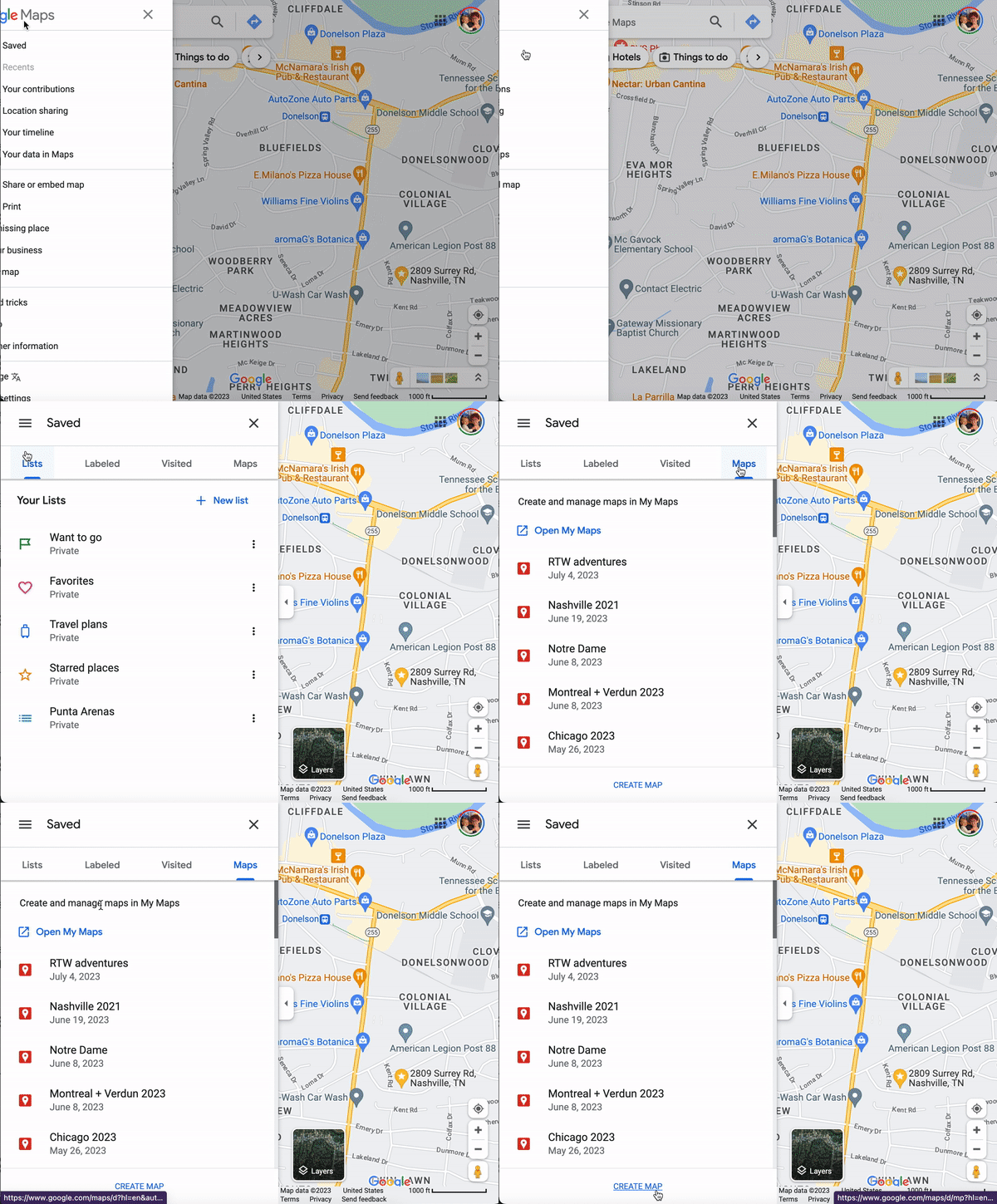
- Go to maps.google.com.
- Click the hamburger menu in the top left hand corner.
- Click Saved.
- Click Maps, on the right side of the menu.
- Click Create Map, at the bottom of the menu.
Step 2: Create the layers
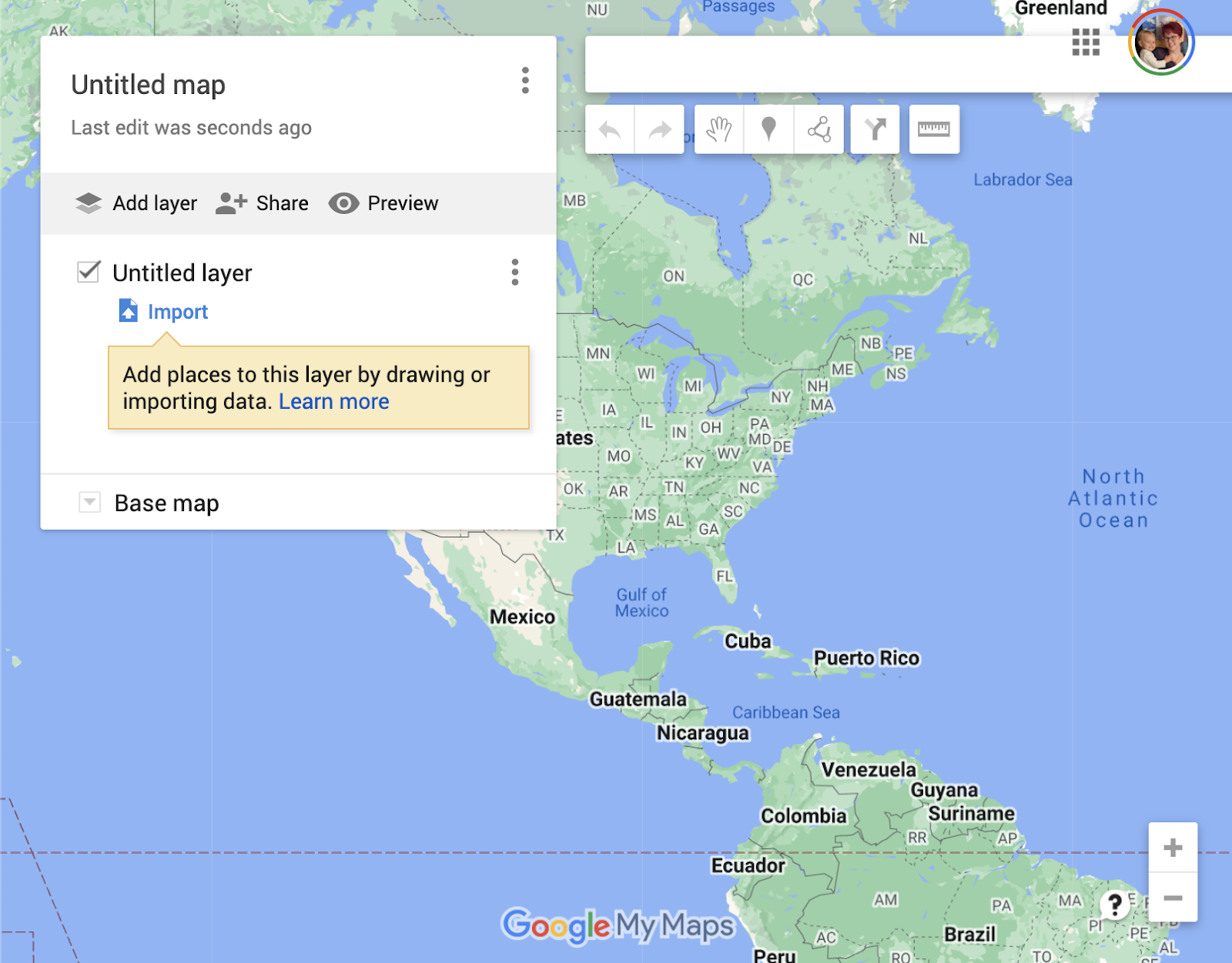
When you first create a new map following the steps above, it looks like this.
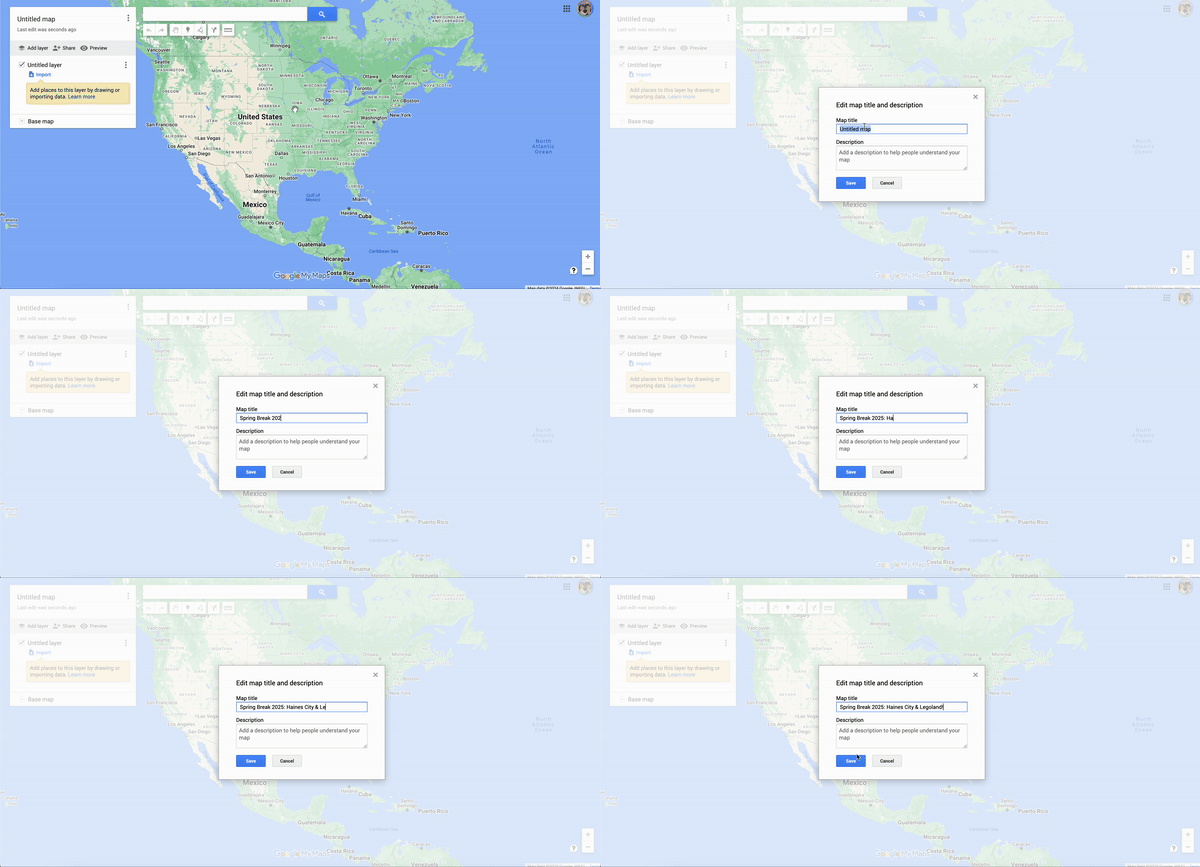
First give your map a title, so you can easily find it later. Click on the “untitled map” text to rename it. Click Save.
Next, name the untitled layer. Click the 3-dots menu and select Rename this layer. You will use at least two layers, and may choose to use more.
Think of the layers as categories that you’ll use to bucket and group activities together. You get to decide on the organization of your map. You can toggle layers on and off at any time, as well as customize the aesthetics of each layer so your map is easy to read at a glance.
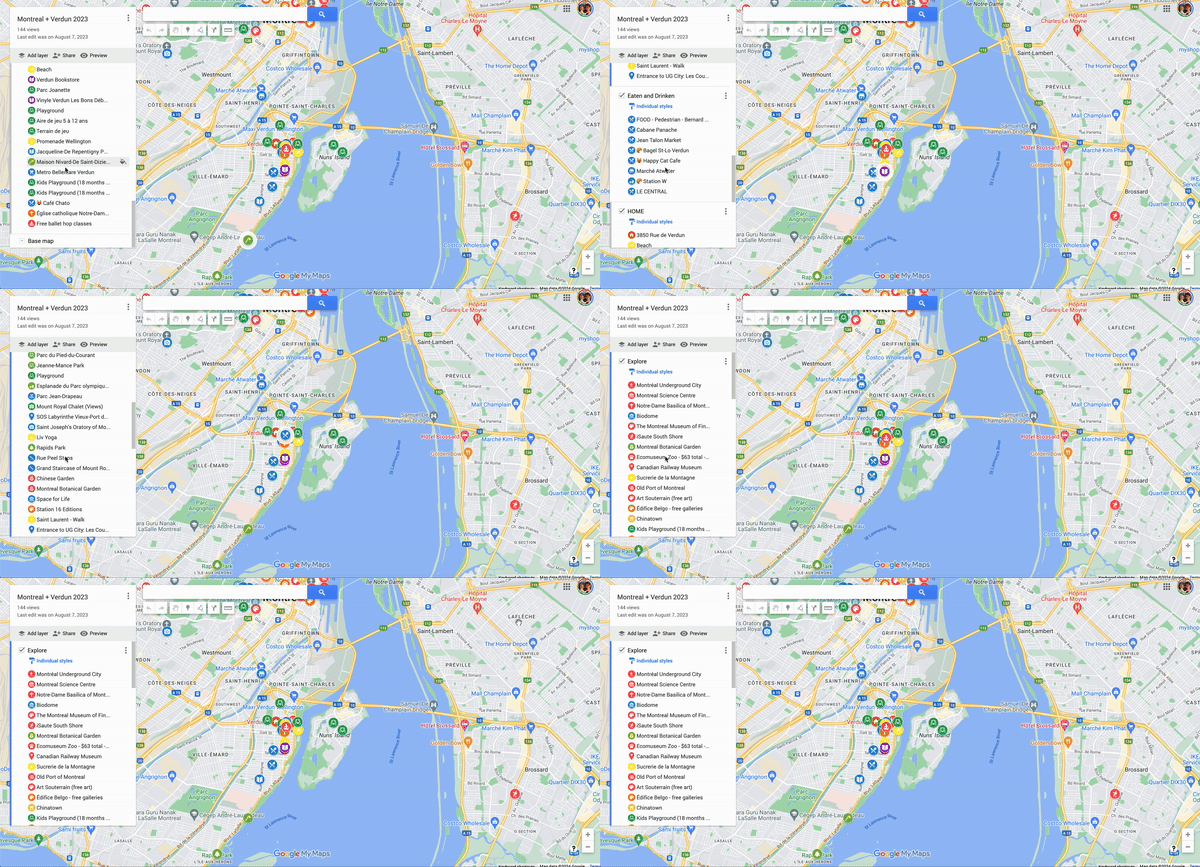
I typically create one map per trip or per city, and then create the following layers:
- Important: This layer includes where we’ll be staying; primary metro station; nearest grocery store; friend/family addresses if we’re visiting them; must-know locations such as office or conference center, if it’s a work trip; daycare, if childcare is necessary; any pre-booked commitments, such as conferences, appointments, social events, presentations, etc.
- Eating and Drinking: This layer includes all of the restaurants and bars that Justin thinks sounds interesting (I add things too, but he is in charge of our travel eating).
- To Do: Things that sound interesting or fun or go see or do.
Feel free to use these layers to get you started, and add others that suit your travel preferences! If you know what you want your other layers to be, add them now by clicking the Add Layer button.
Sometimes you may not know what your categories are when you start researching and planning. In the very early stages of planning a trip, you may not need any layers and you’ll just want to drop pins for any and all interesting attractions. In that case, forgo the many layers and just use one! You can drag-and-drop items from layer to layer later on.
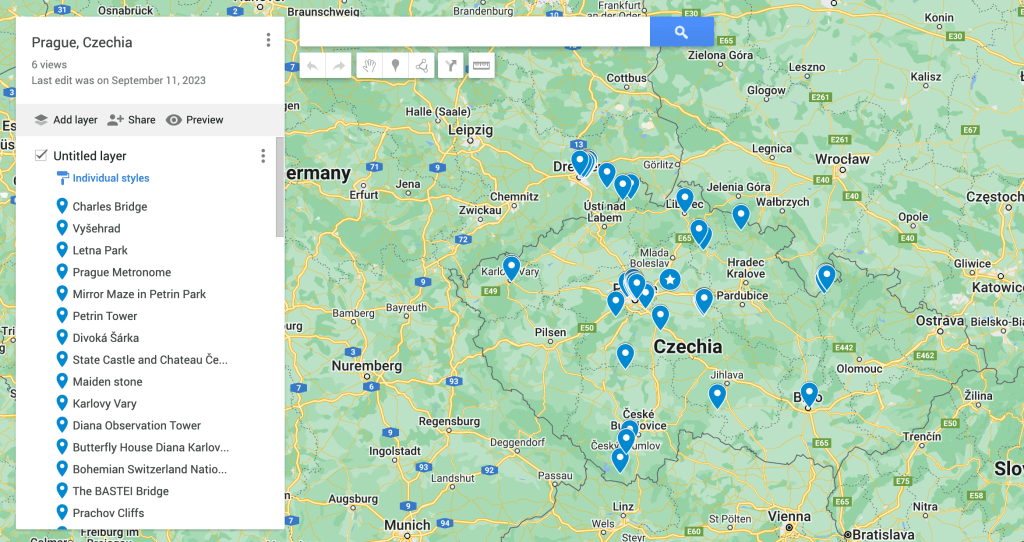
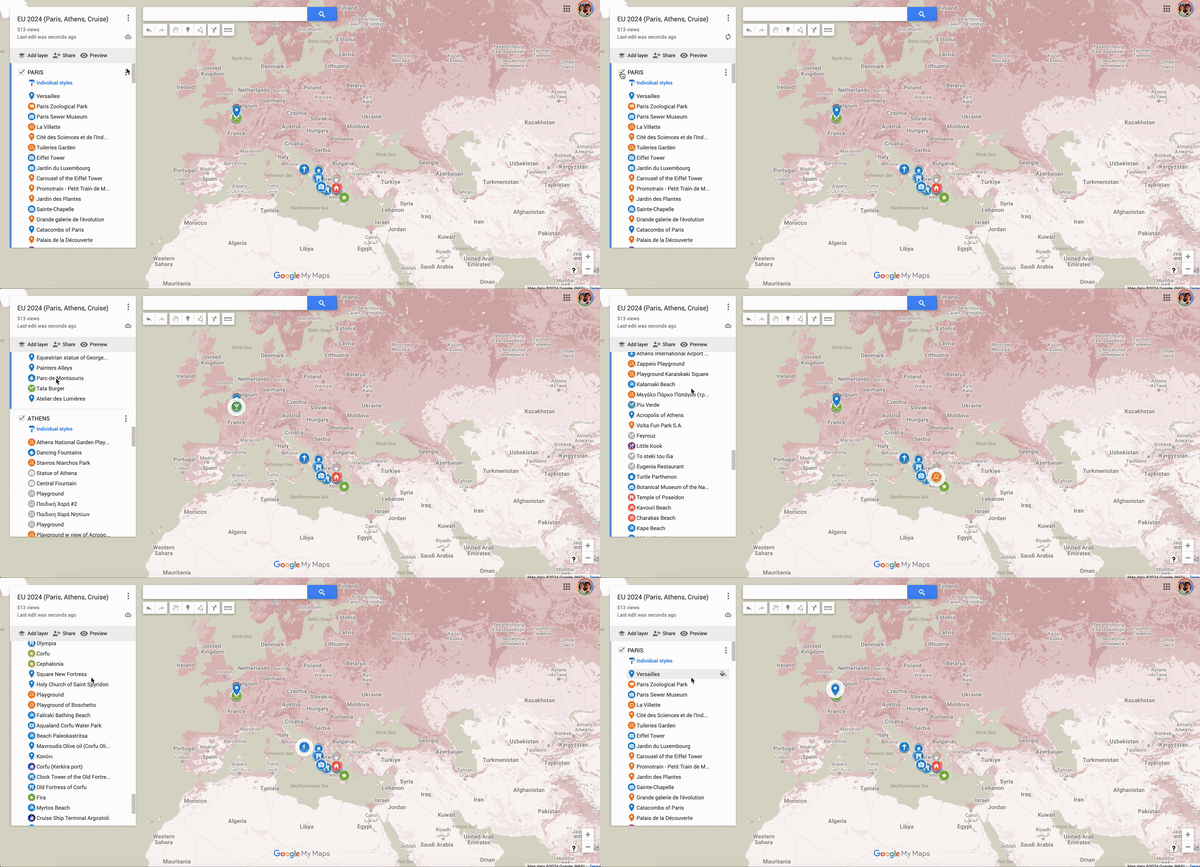
NOTE: Similarly, when dreaming and researching about longer-form future trips, involving many potential destinations, I create a layer per destination. This way I can see all of the places in relation to one another to get a high level view of things. It helps plan routes and decide what things to leave off or make the effort to include.
Step 3: Do your research
As you research your destination, make a list of anything and everything that sounds interesting to you. Famous landmarks. Iconic architecture. Tours or excursions. Playgrounds or parks. Farmers markets. Hiking trails. Hole-in-the-wall donut shops. Speakeasies and craft breweries. Whatever strikes your fancy!!
When we travel as a family, I seek out as many free sites, attractions, and activities as possible. Things that we can easily see by simply walking by; areas where our kid can run around like a maniac; activities that let us better understand local culture. When we travel without our kid, our ABC lists change. We prioritize cocktail bars and other adult-only establishments, highly-rated restaurants, longer walks or more strenuous activities. Absolutely zero playgrounds.
Step 4: Add to your map
Now, one by one, add every single item from your research in Step 3 to your map, sorting them into the appropriate layers as you go. Think of these as map pins.
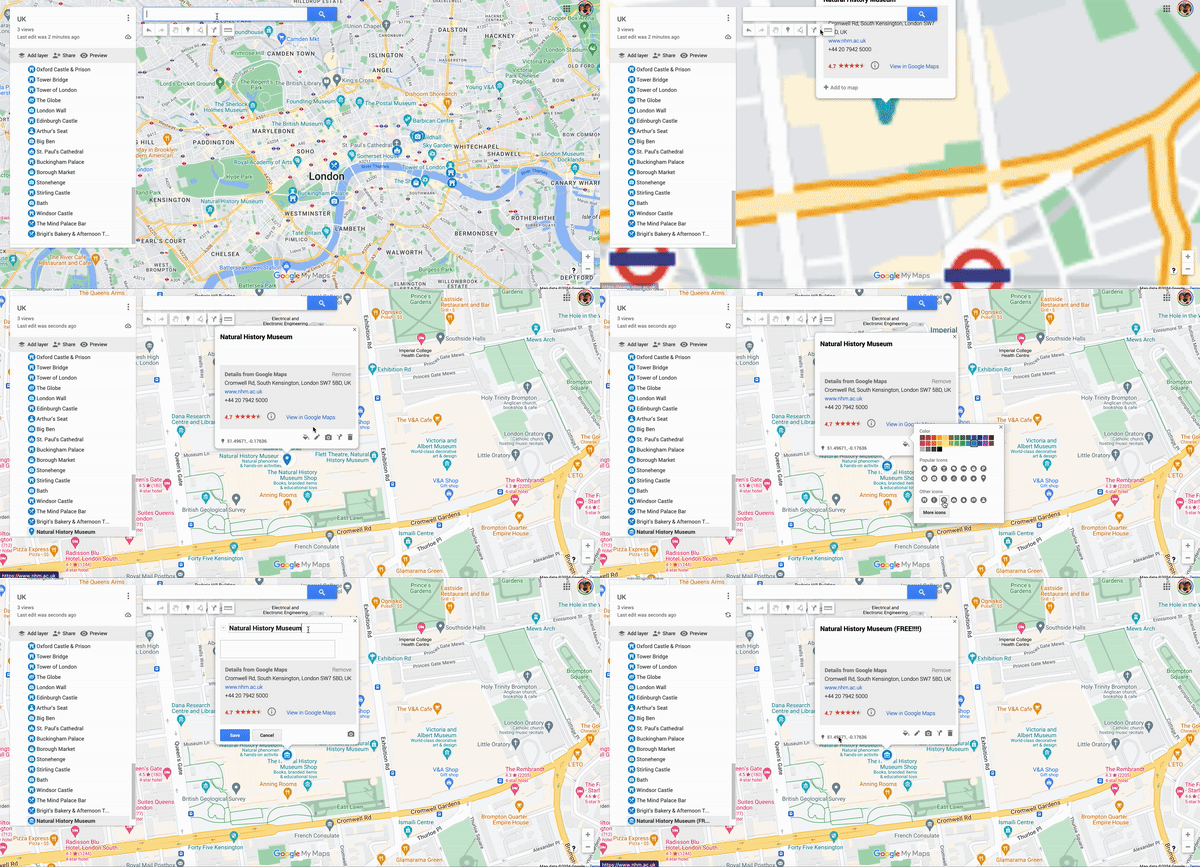
To add a map pin, type the name of the place into the search bar and click the magnifying glass to find it. It will zoom you way in, to the exact location of that place.
Click the Add to map button. You’ve now added a map pin.
Repeat.
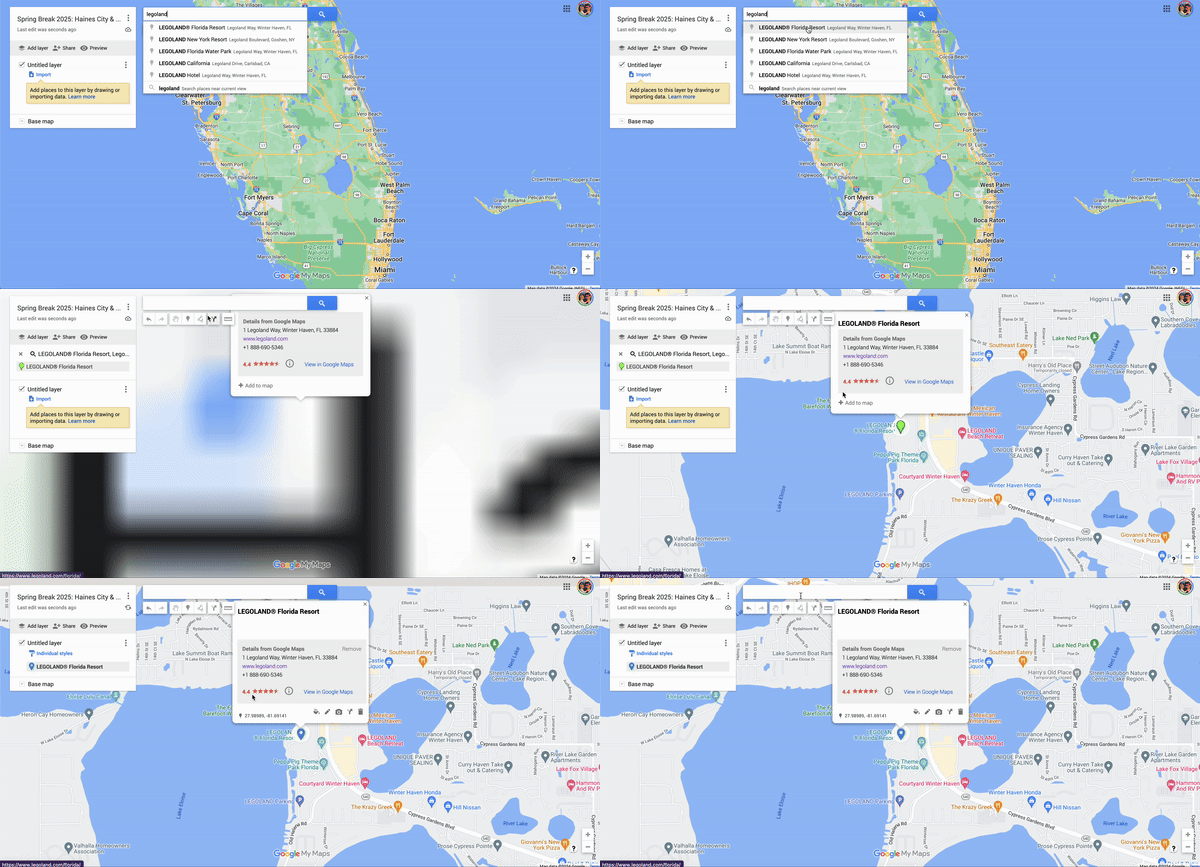
Often, steps 3 and 4 happen in tandem, as one step. It doesn’t matter the order. Maybe you build the map slowly over a few weeks, adding things every time you read about something interesting or a coworker tells you about another brewery you just have to try! Maybe you keep notes in a notebook and add all of the places in one go. Just make sure you add everything that sounds interesting to you and your travel companions – and that you’ve organized it!
PRO TIP: Add details to the Title or Description of the map pin to remind yourself later why you added it. I like to include a link to the website and cost information!
Step 5: Customize your map legend.
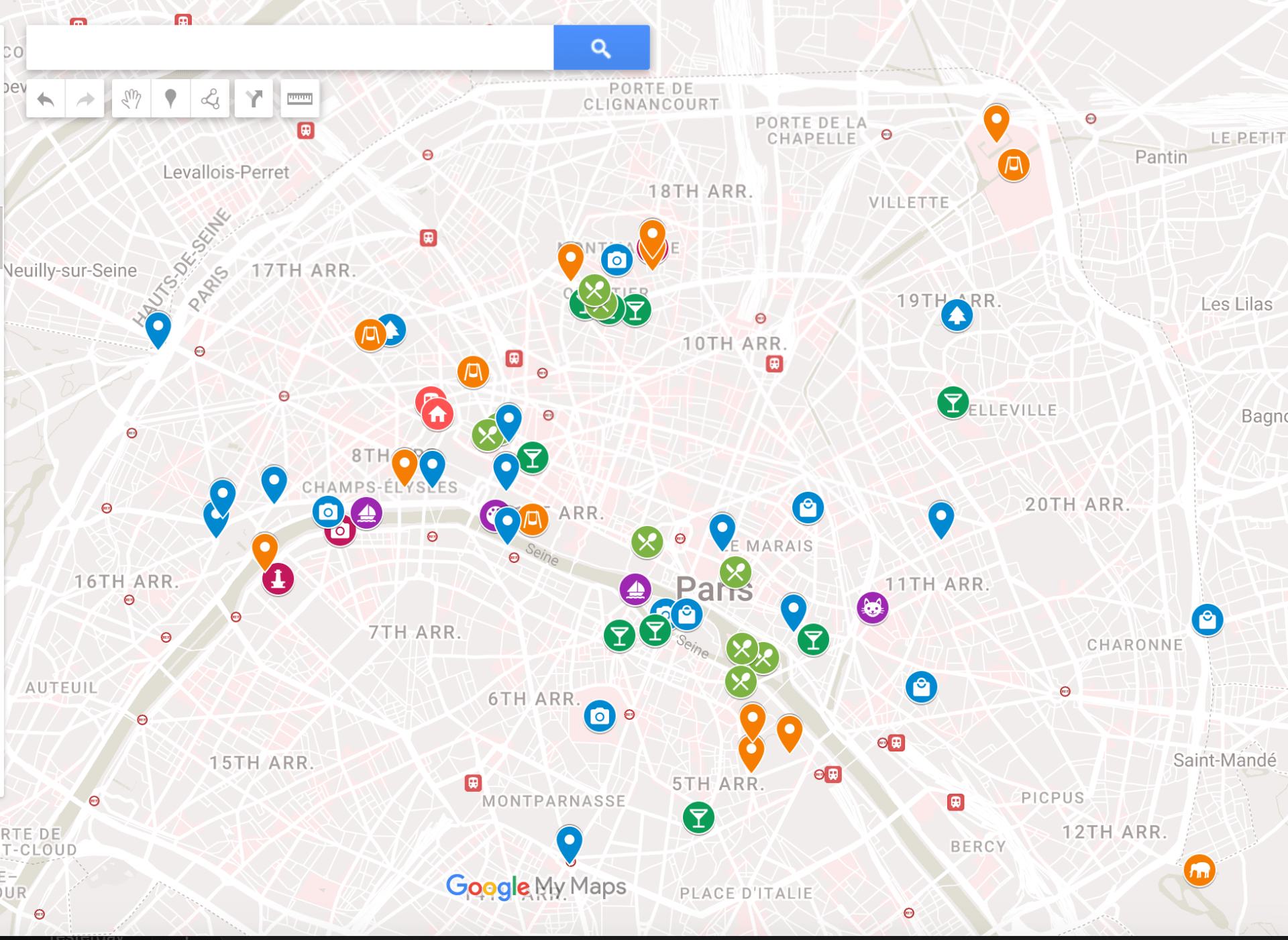
Maps should be quickly readable, at a glance, as you scroll around on your phone while walking. The whole point is quickly. And it’s hard to read a map quickly when every pin on the map looks exactly the same.
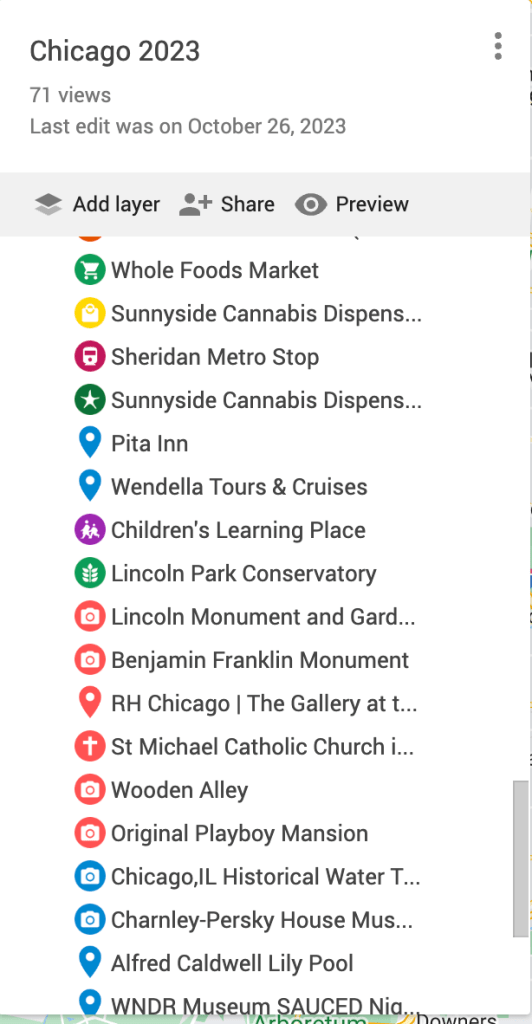
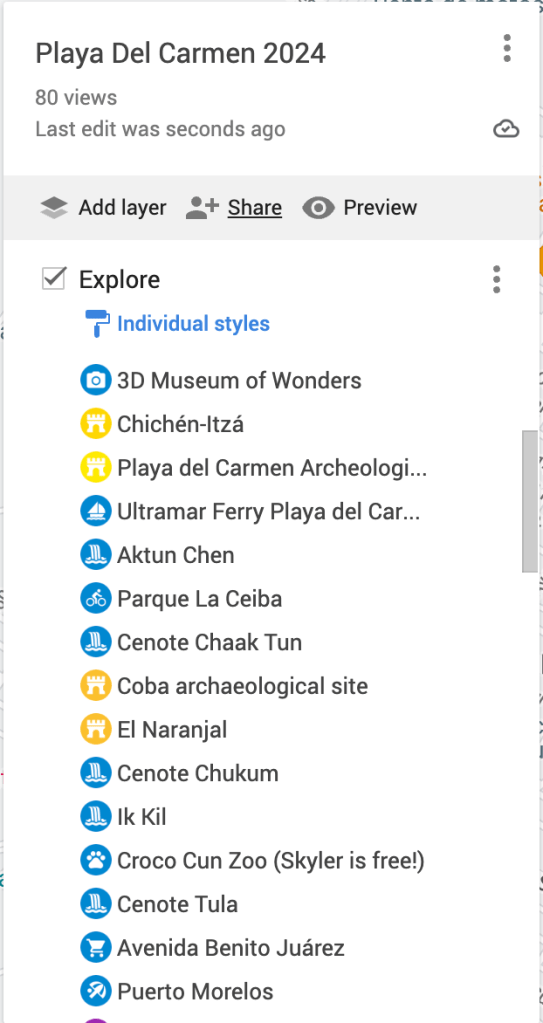
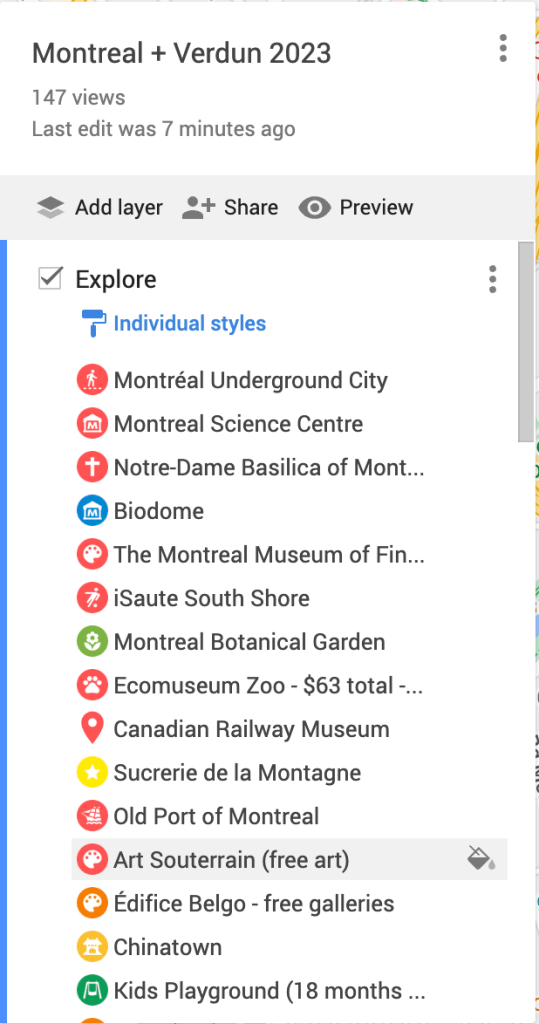
Using the available style options, create your own map legend using a combination of colors and symbols. Each layer can have a uniform style, automatically applied to any existing or newly added items. Or each item in a layer can have its own individual style, which is usually what I opt for.

I often make my “important” layer all one shade of red, but with individual icons indicating “home”, “train station”, “school”, etc. I usually use green + dining icon for restaurants (since they cost money). Sites I want to see all get the default map pin icon (usually because I’m too lazy to change so many items), however things that are free to look at or explore are usually blue, while paid activities will be another shade. If I have a LOT of one type of map pin, such as playgrounds or cenotes, I will highlight the top three that we can’t miss in red.
Don’t be dogmatic about it! This legend does not need to be consistent across all of the maps you create. As you can see by the examples below, I am constantly tweaking my process! All that matters is that YOU understand the map when YOU look at it.
Step 6: Look for areas of high-interest to build you itinerary
Where is the highest concentration of your map pins? Start there! Pick a destination, then start wandering intentionally! Figure out a loose walking route based on other interesting stops along the way, allowing yourself to see as many of the interesting stops as possible. Then walk out the door! That’s it! 🙂
Explore some of the maps I’ve created for my family
Here are links to the REAL maps that I’ve created when planning trips for my family so that we can plan interesting but well-paced days of intentional wandering.
Playa del Carmen
We spent 4 weeks living and working in Playa del Carmen and 1 week on PTO. Read more about our adventures (because we did this twice — in 2023 and 2024)!
Montreal
We spent 1 week living and working in Verdun and 1 week on PTO exploring the Montreal area. Read more about exactly what we did in Verdun and how we organized at two-week home exchange to make it happen!
Paris + Athens
We took our 5 year old to Europe on a pure PTO trip, including 5 nights in Paris, 7 nights on a cruise, and 4 nights in Athens. Read more about what we did here.
FAQs
If you have any questions, let me know so I can answer them!
Why do you use Google Maps and not [Insert Fancy App Name]?
There are many reasons that I use good ole Google Maps:
- It is free to use.
- It’s easy to access from any device.
- Maps can easily be shared with anyone on any device.
- You can download the maps for offline access.
- GPS is a native functionality.
Additionally, my life is already embedded in the Google universe and I have a Pixel phone. I feel comfortable and familiar with Google products, and they let me customize things
Also, did I mention that Google Maps is free? 🙂
What if I don’t want to use Google Maps?
There are other map and trip planning apps that you can use. I don’t personally have experience with any of them so I can not recommend one over another. The list below is simply based on recommendations from other travel bloggers:
Discover more from No Place Like Anywhere
Subscribe to get the latest posts sent to your email.
3 comments
[…] integration of Google Maps into travel planning is not limited to identifying directions. It is a multifaceted tool that enriches your journey with […]
[…] and safety information is a good starting point. You can then look at the area you are visiting on Google Maps to get a sense of the distance between where you will be staying and the activities you are […]
[…] If you want a concrete example of organizing day-by-day plans in a single view, search for Google Maps step-by-step itinerary guides. They show how to create layers for each day and layer-by-layer routes. A helpful guide is here: https://noplacelikeanywhere.com/how-can-i-help/planning/a-step-by-step-guide-to-using-google-maps-fo…; […]